

Introduction
TCP is the backbone of most application networking – from web requests to database queries.
Developers and DevOps engineers often encounter cryptic error messages such as “Connection refused” or “Connection reset by peer” in logs. Without context, these messages can be frustrating and time-consuming to interpret. And although the TCP protocol is decades old, it remains one of the most widely used transport protocols on the Internet today – which means that understanding and troubleshooting TCP errors is still a highly relevant skill.
This article is the first part of a series on understanding and troubleshooting TCP errors. The series explains what these errors really mean at the protocol level and shows how to investigate them effectively using practical tools and examples. Each error type is discussed in its own part of the series, structured into three subsections:
- TCP Insights — explains the aspects of the protocol related to the error.
- Error Behavior — illustrates what happens when the error occurs.
- Troubleshooting — provides guidance and tools for diagnosing and resolving the issue.
By combining protocol understanding with practical troubleshooting steps, this series aims to help you recognize what TCP errors really mean and how to fix them efficiently. The first part of the series focuses on the “address already in use” error – a problem that appears when a process attempts to bind a TCP socket to an IP address and port combination that is already occupied.
If you’d like to explore these concepts hands-on, the TCP/IP & DNS Sandbox Git repository provides practical examples. It contains several Python applications and a Terraform configuration for deploying an AWS-based sandbox where you can safely reproduce the scenarios discussed in this article – from connection attempts and port conflicts to handshake failures. All practical demonstrations used in the troubleshooting sections – such as inspecting listening ports with netstat, analyzing socket states, or capturing packets with tcpdump – are based on this sandbox environment, so you can follow each example exactly as shown. However, the Python applications are independent of the AWS infrastructure and can be used in any environment where you want to experiment with TCP behavior.
TCP Insights
Before a TCP client can connect to a server, the server must first open a TCP socket in listening mode and bind it to a specific network interface (IP address) and port number. This is how a server announces to the operating system that it is ready to accept incoming connections on a given port.
A process may bind its listening socket to:
- a specific interface, for example 192.168.1.10:8080
- all interfaces using the wildcard address, for example 0.0.0.0:8080
The wildcard binding (0.0.0.0:<port>) covers all local interfaces. Therefore:
- A process bound to 0.0.0.0:8080 implicitly occupies every local address on that port.
- Conversely, a process bound to a specific address (e.g. 192.168.1.10:8080) prevents another process from binding to 0.0.0.0:8080 for the same port.
These rules follow from how the TCP stack manages the mapping between listening sockets and incoming connection attempts.
Error Behavior
The “Address already in use” error usually appears when a service such as a web server or database is started. During startup, these applications open one or more TCP sockets in listening mode to accept incoming connections. The “Address already in use” error occurs when the operating system refuses a bind request because the requested IP address and port combination is not available. Typical causes include:
- Another process is already listening on the same IP/port pair.
- Wildcard bindings conflict with specific bindings (e.g., 0.0.0.0:<port> prevents binding the same port on any individual interface).
- Recently closed connections remain in the TIME_WAIT state, temporarily reserving the port and preventing an immediate restart of the server.
The behavior related to the TIME_WAIT state can be influenced by the SO_REUSEADDR socket option. This option allows rebinding to a port that is blocked only due to TIME_WAIT, which is useful for restarting a server quickly. This options is provided by the operating system’s TCP socket API, not by any particular programming language. It is exposed in languages such as Python, Java, Go, and others.
Troubleshooting
When an application reports “Address already in use”, the goal of troubleshooting is to determine what process currently occupies the port and why the operating system refuses the bind.
This typically involves checking for existing sockets, identifying processes, and understanding the system’s reuse policies.
- Use the tools like netstat, ss, lsof or Get-NetTCPConnection PowerShell cmdlet to list sockets in listening or TIME_WAIT states. These tools also provide the possibility to display the PID of the process bound to the open ports.
- Check for wildcard bindings. Remember that a process bound to 0.0.0.0:<port> (all interfaces) prevents other processes from binding to that same port on any specific address.
- Use the SO_REUSEADDR socket option for quick restarts.
The following examples demonstrate how to inspect listening sockets, identify the owning processes, and observe port-binding conflicts directly on the system. I will use the netstat command, which is available on both Windows and Linux. For troubleshooting the “address already in use” error, other tools such as ss (Linux, part of the iproute2 package and a modern replacement for netstat) or PowerShell’s Get-NetTCPConnection provide equivalent functionality.
The following screenshot shows the output of the netstat command on Windows:
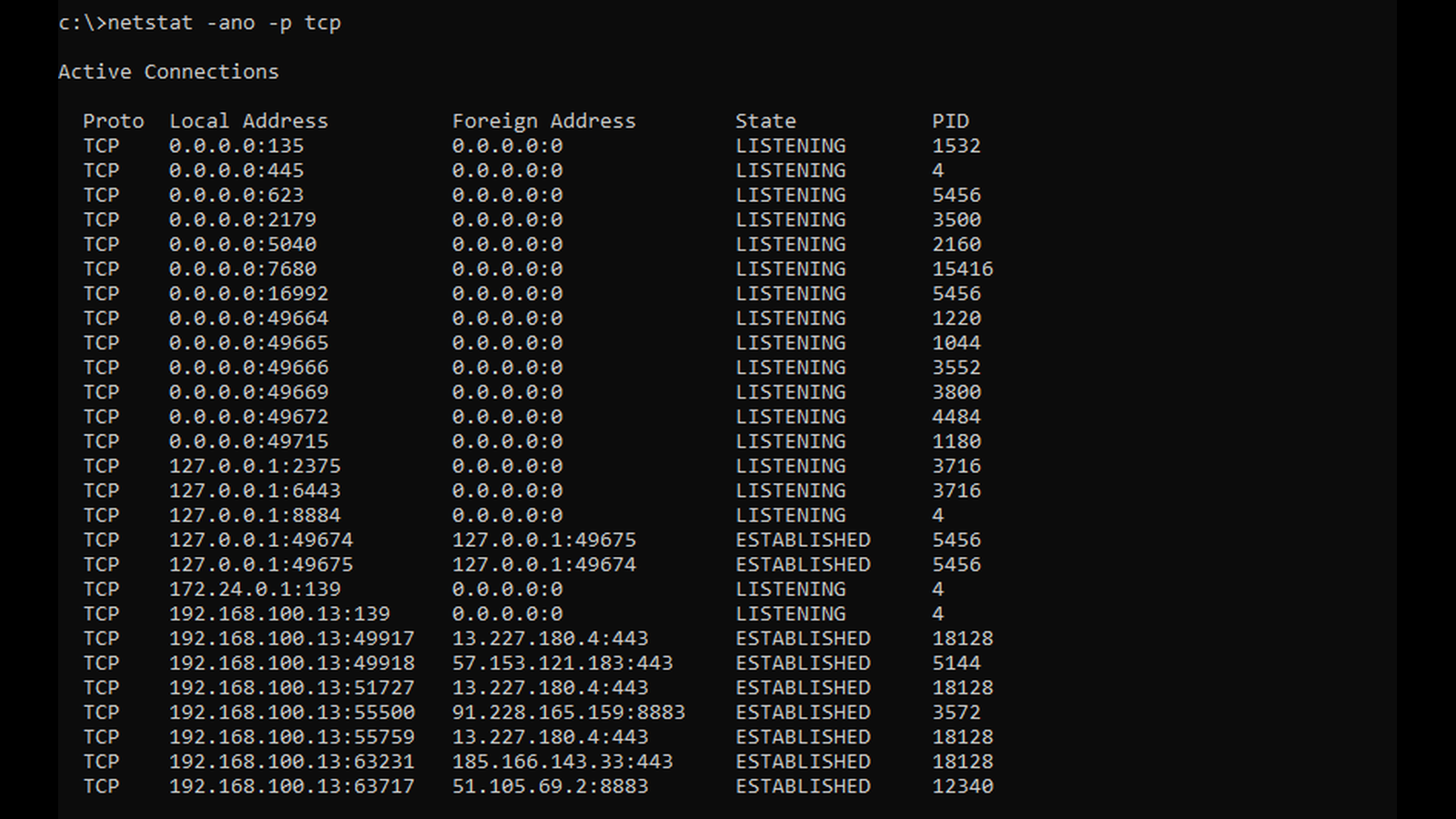
- Protocol – the leftmost column shows the protocol. Because the -p tcp option was used, the output includes only TCP sockets; UDP and other protocols are omitted.
- Local Address/Foreign Address – these columns show the socket endpoints (IP address + port). For sockets in listening mode, only the local address is relevant. The -n option forces numeric IP addresses and ports to be shown instead of names, and the -a option ensures that all sockets are displayed, including listening sockets and established connections. When troubleshooting “address already in use” on Windows, the -a option is essential. By default, only established connections are shown, which can be misleading.
- State – indicates the current state of each socket. This column allows you to distinguish between sockets in LISTENING mode, ESTABLISHED connections, and sockets in TIME_WAIT, which can also contribute to port reuse problems.
- PID – shows the process ID of the process that owns the socket. This column is displayed thanks to the -o option and is crucial when identifying which process is currently using a port.
The other examples in this chapter demonstrate netstat on a Linux system, so you can see how the tool is used on both platforms. I will also briefly describe the Linux-specific options used in the command examples.
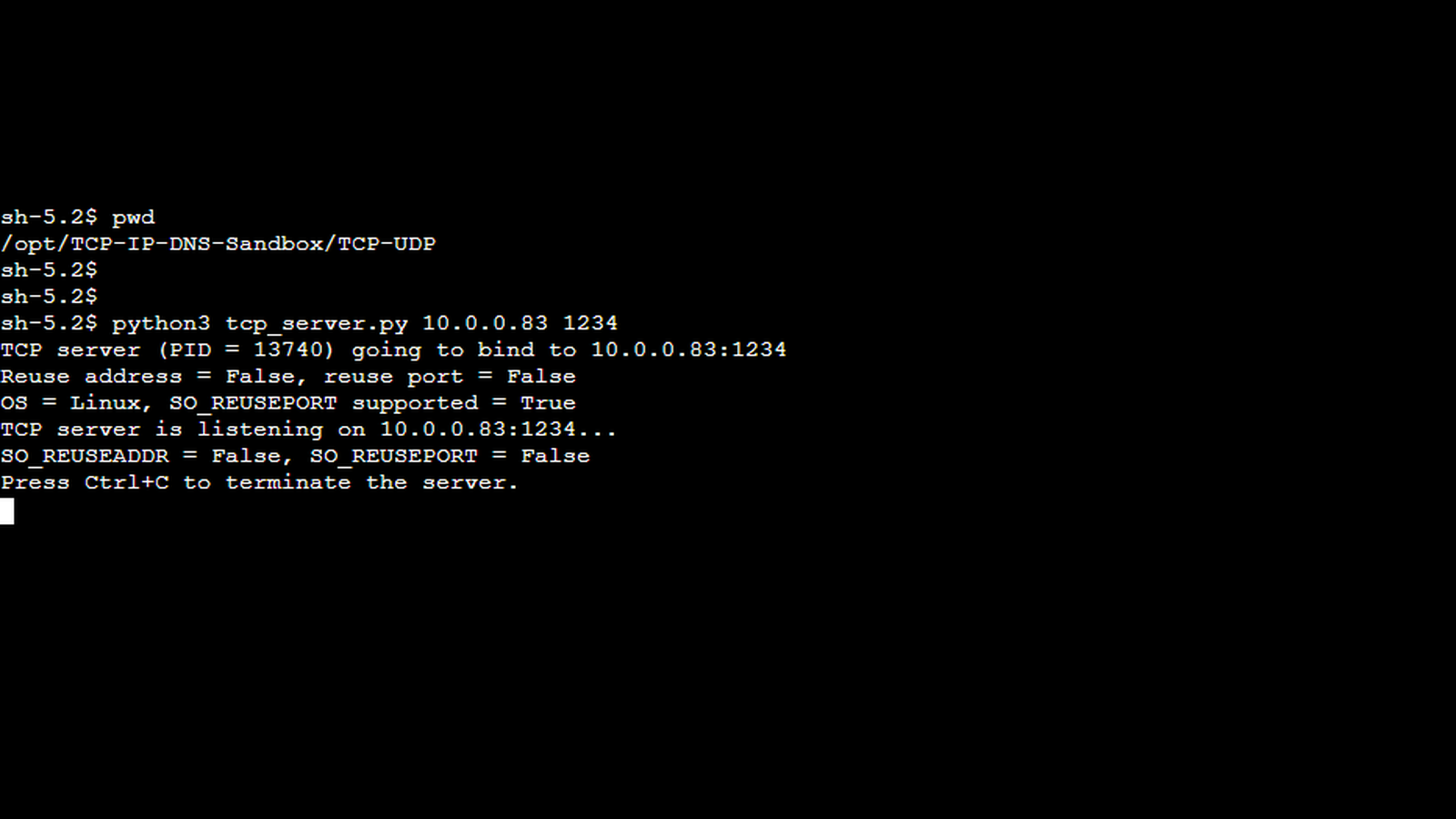
To illustrate how the “address already in use” error occurs in practice, we will use the TCP server application from the TCP/IP & DNS Sandbox repository. The demo runs on the AWS infrastructure provisioned by the accompanying Terraform configuration, but the server behaves the same way in any environment.
The first screenshot shows the initial TCP server instance starting successfully and binding to the IP address 10.0.0.83 and TCP port 1234. At this point, the operating system has created the listening socket, and the server is ready to accept incoming connections.
The next screenshot shows what happens when a second instance of the same TCP server is started on the same IP address and port. Because the port is already occupied by the first server, the attempt to open a socket in listening mode fails immediately, and the process reports the “address already in use” error.
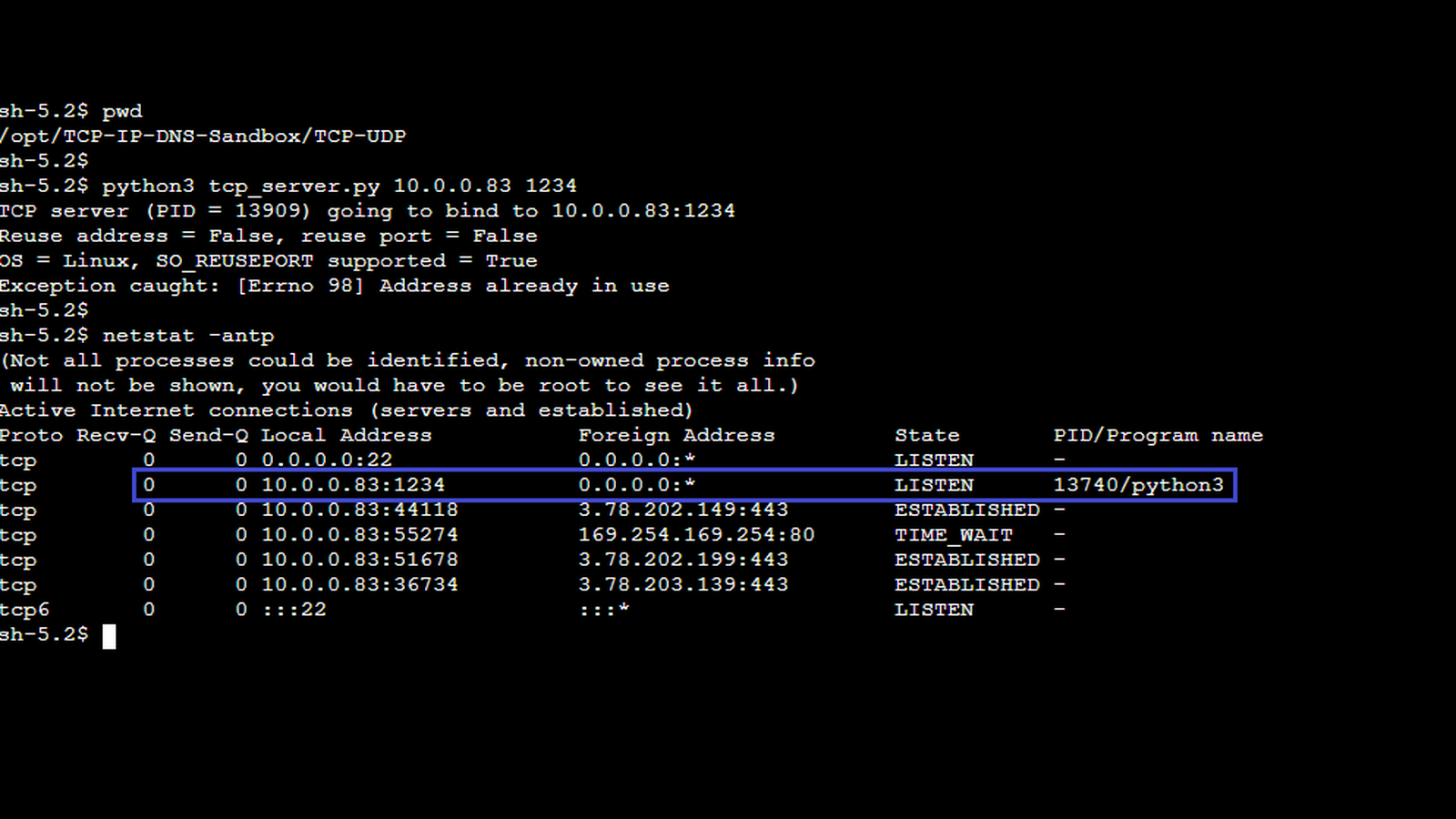
The screenshot above also shows the netstat output which confirms the error. It shows the first TCP server process in the LISTEN state on the relevant IP/port pair, and therefore explains why the second instance cannot bind to the same address.
Because this demo is running on Linux, the netstat output contains few additional columns, and some of the option names differ slightly from the Windows version. For the purpose of troubleshooting an “address already in use” error, these extra columns can be safely ignored. The columns we relied on in the Windows example are present here as well, although the headings are not identical.
The -a and -n options have the same meaning as on Windows: -a displays all sockets, and -n forces numeric addresses and ports. The -t option restricts the output to TCP sockets, and the -p option shows the PID and process name of the socket owner. Note that viewing the PID of a process owned by another user requires root privileges. In the output on the last screenshot, we only see the PID for our TCP server. The PIDs of the other processes are not displayed. This is because the output was generated by a non-root user, and those other processes were owned by different users.
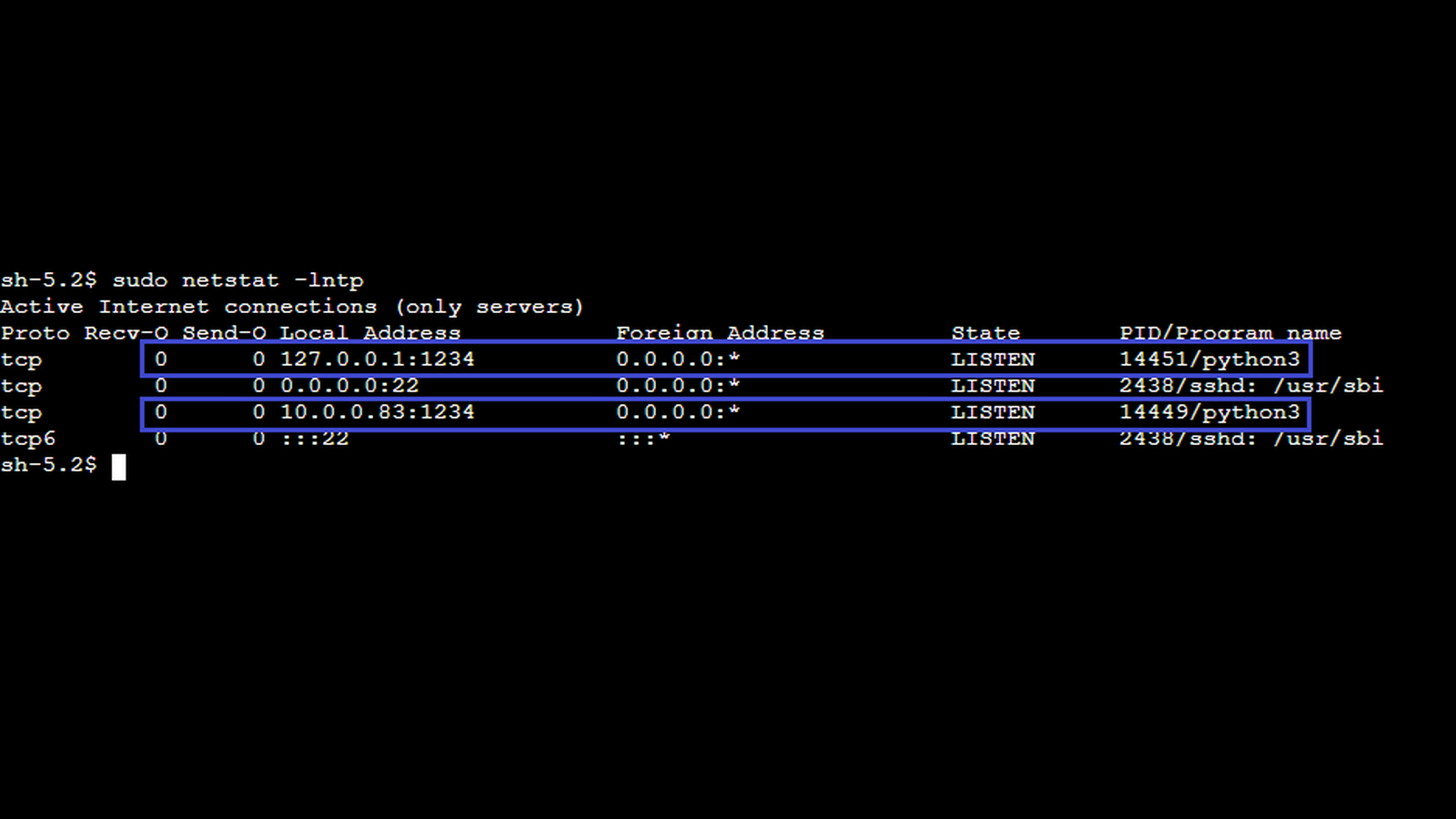
The final screenshot shows another netstat output, this time executed with root permissions, so the PID is displayed for every socket. You can also see that two sockets are listening on the same TCP port (1234), but each is bound to a different IP address (network interface), which is why there is no conflict. Note the use of the -l option – this is specific to the Linux version of netstat and filters the output to show only sockets in the LISTEN state.
Conclusion
The “address already in use” error is a local issue that arises before any network traffic is exchanged. By understanding how TCP sockets are bound to IP addresses and ports, and how wildcard bindings, the TIME_WAIT state, and the SO_REUSEADDR socket option influence that process, you can quickly determine why a bind operation fails and how to resolve it. Tools like netstat, ss, and PowerShell’s Get-NetTCPConnection make it straightforward to identify which process occupies a port and whether a port can be reused safely.
In the next part of this series, we will move from local bind failures to network-facing connection problems, beginning with the “connect timeout” error. A connect timeout indicates that the client’s SYN packets are not receiving any response – neither a SYN + ACK nor a RST – often due to firewalls, routing issues, or silent packet drops. Understanding how this behavior differs from both “address already in use” and “connection refused” is an essential step in building a complete TCP troubleshooting skill set.

